

Online Booking Software
Through the online booking portal of Softvision Agenda, your company's customers can independently book an appointment for any service offered by your company.
The booking website is accessible at http://PREFIX.easybook.cloud. If you have your own website, the portal can be directly embedded by following the instructions on the Integration page.
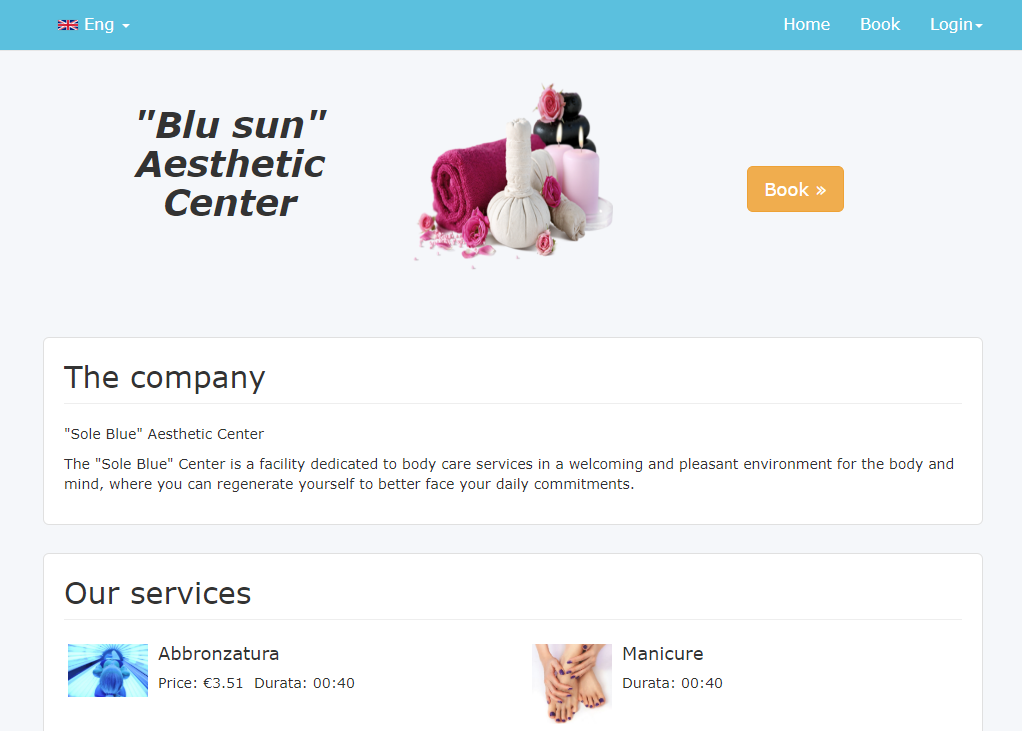
The home page of the online booking software can be customized by adding your company logo and descriptive text.
The logo can be uploaded via "Company Menu | Company Data" in the Softvision Agenda control panel (https://agapp.softvision.it) while the description can be entered in "Configuration Menu | Booking Portal".
In the same section, you can also set various preferences that influence the booking process.
The available options are:
- Portal operating mode (with authentication, anonymous, view-only, disabled)
- Enable Facebook login on the booking portal
- Allow new customers to make bookings
- Automatic password generation
- Do not require password for already registered customers
- Require acceptance of privacy policy and terms of use
- Send notifications to the control panel
- Require manual confirmation of bookings
- Notification messages from the booking portal
- Appointment duration
- Interval between two appointments
- Portal address prefix
- Advance hours before the booking time
- Maximum days in advance for booking
- Advance hours for cancelling a booking
- Maximum number of pending appointments per customer
- Data required for customer registration
- Enable adding notes
- Customize return address
The meaning of each item is explained in detail directly within the control panel.
The booking process
From the homepage of the online booking portal, the customer can start a wizard by clicking the "Book" button that will guide them through the booking process.
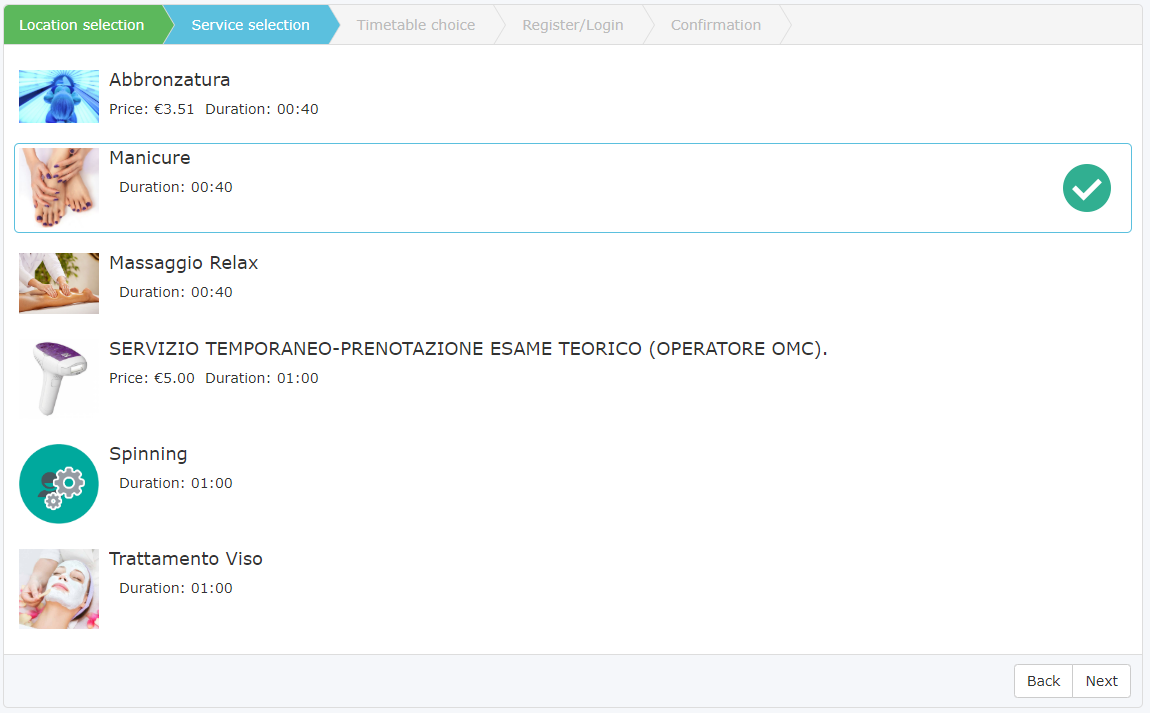
Selecting the service
The customer is asked to select the service for which they want to request an appointment (e.g., Haircut, Blow-dry, etc.).
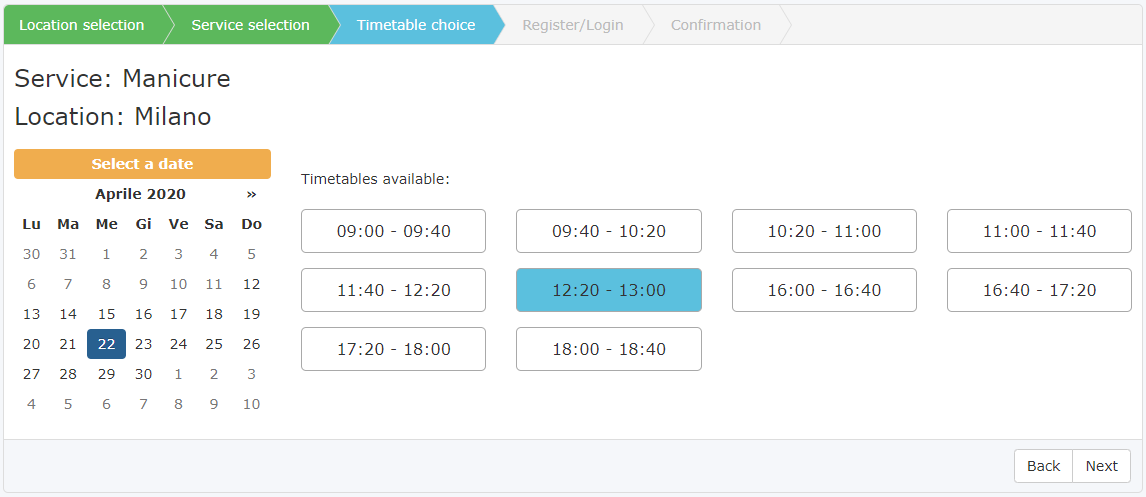
Selecting the time
After selecting the service, the customer must first choose the appointment day and then select one of the available time slots on that day.
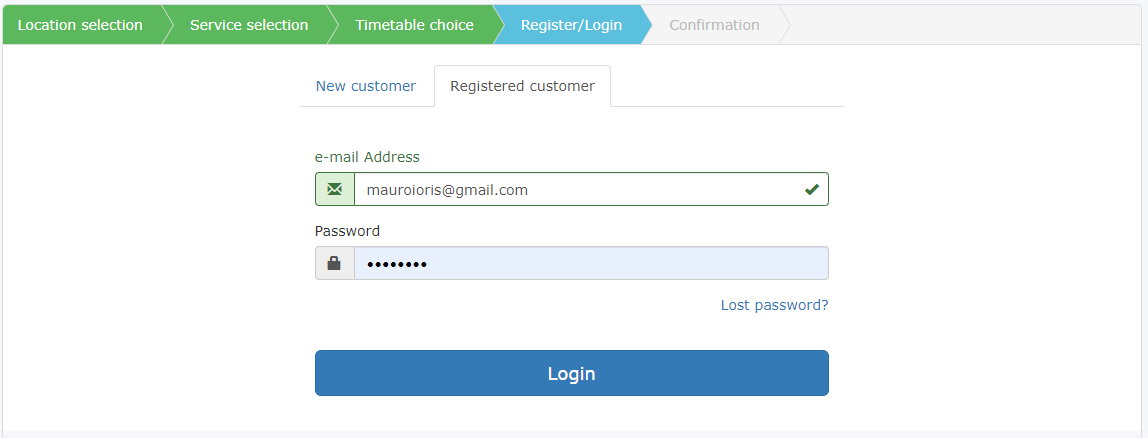
Login or registration
At this stage, if the customer is already registered, they must enter their account credentials. Otherwise, depending on the portal's operating mode, they will be asked to provide their details and choose a password.
Confirming the appointment
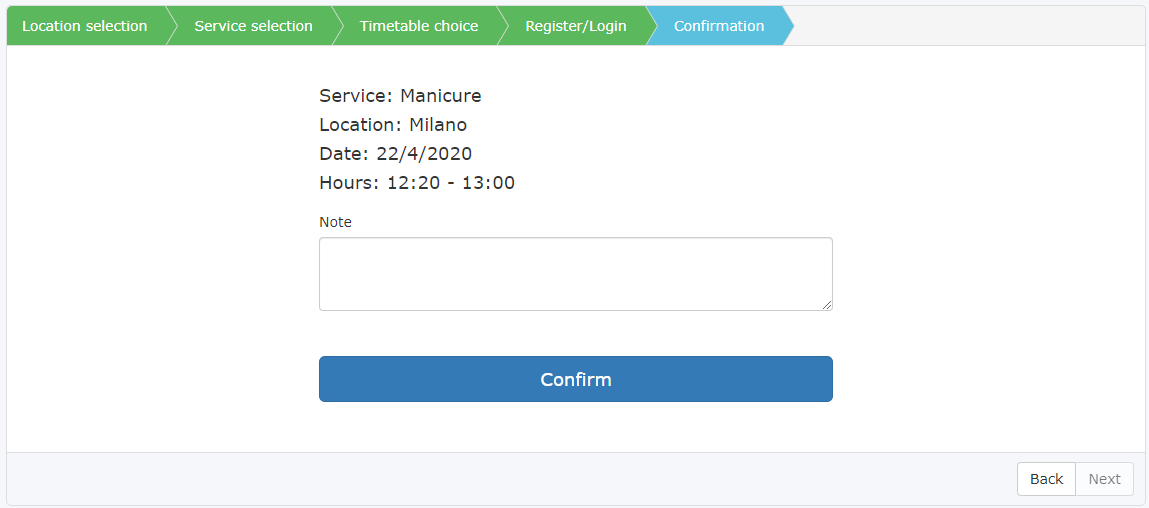
In the last step of the booking process, the appointment details are displayed and the customer is prompted to click a button to confirm the booking request.
Other software features of the portal
The booking portal, in addition to allowing customers to book, can operate in "View-only" mode. This way, customers can see available time slots for a service but must contact the company directly to make a booking.
Another feature, accessible only after logging in, is "My Appointments", which allows customers to see their past and future bookings.