

Booking Calendar
The Softvision Agenda booking calendar allows you to view appointments entered by staff members or through the portal and also create new appointments.
Appointments are displayed in three main views:
- Day: shows all appointments for a single day. This view provides the best visibility for each appointment.
- Week: shows all appointments for the entire week. This is especially useful when adding a new appointment, as it allows you to easily identify available time slots.
- Month: a compact calendar view showing appointments for the whole month. The downside is that it only shows the day, not the exact time of the appointments.
- Resources Day and Resources Week: display all resources in rows, each containing all time slots for the day or week. These views are useful for understanding how resources are allocated over time.
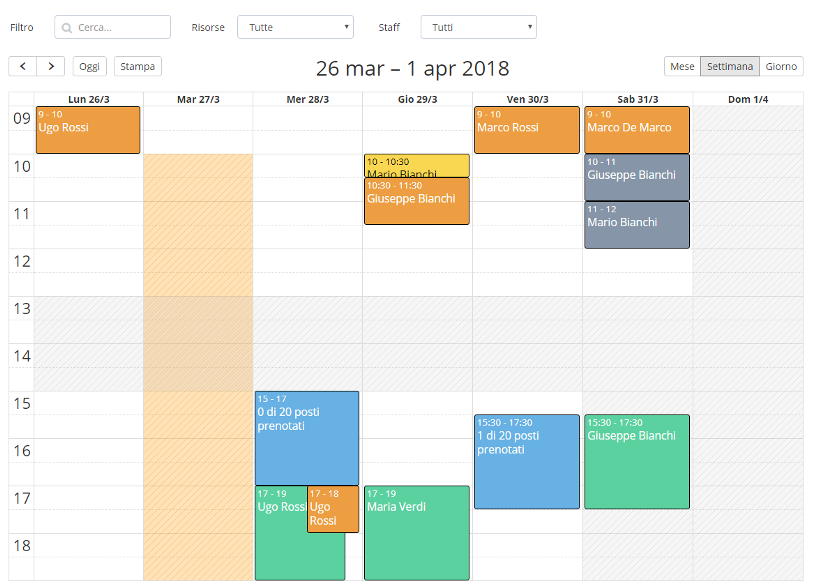
Each appointment in the booking calendar is represented by a box showing different details: the color indicates the booked service, the position indicates the day and time, and the size represents the duration.
In the day and week views, the width reflects the company working hours, while greyed or dashed areas indicate unavailable times (lunch break, closure periods, etc.).
Adding or editing an appointment
To add or edit an appointment, simply double-click on the desired day and time. In the opened window, the first step is to select the service for which the appointment is requested. Then choose the customer. If the customer is already registered, type the first three letters of the name and select from the list. Otherwise, click "+" to add a new customer.
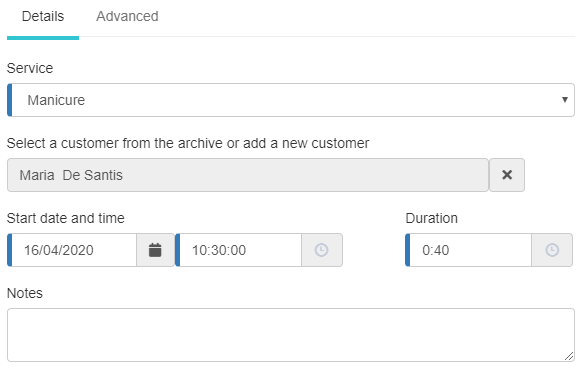
Customer entry is optional, though recommended. Alternatively, enter a brief description in the "Title" field.
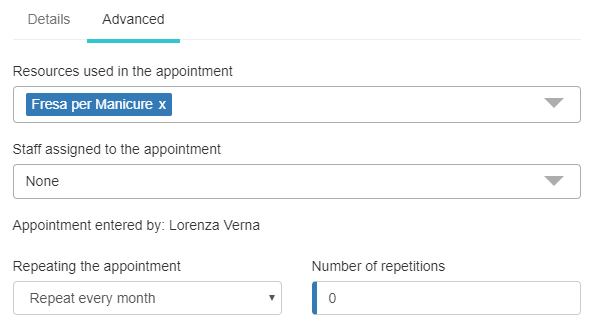
In the "Advanced" tab, you can select which resources and staff members are required for the appointment. These fields auto-populate when the service is selected but can be edited manually. You can also set the appointment to repeat daily, weekly, or monthly.
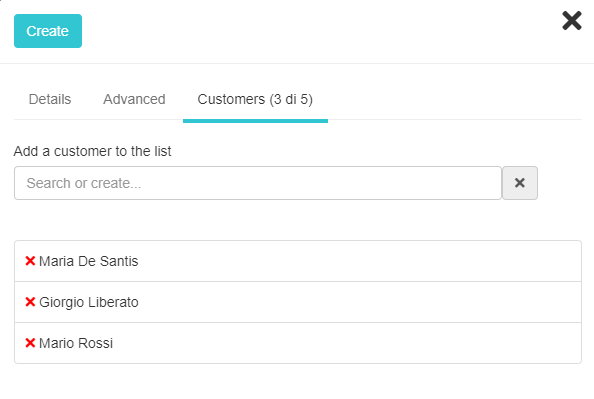
If the service is a "class", a "Clients" tab appears to specify participants. The maximum number of clients is the class capacity.
Moving and resizing
Appointments can be moved or resized in two ways: edit the time and duration in the appointment window, or drag/resize the box directly.
Appointment confirmation
Appointments made via the portal pending staff confirmation are shown with a different border. They can be confirmed via the button in the appointment window or the Softvision Agenda notifications area.
View filters
Softvision Agenda is a multi-calendar system. Each staff member or location can have a separate calendar. Filters at the top allow displaying appointments only for a specific location or staff member.